Free JSON Formatter and Validator Online
Learn how to format, validate, and minify JSON online for free. Explore JSON syntax, common errors, text and tree views, and practical uses for developers, QA.
On this page
- Free JSON Formatter and Validator Online
- What Can You Do With This Tool?
- How to Format JSON Online
- Steps to format JSON
- How to Validate JSON
- Steps to validate JSON
- How to Minify JSON
- Steps to minify JSON
- Text View vs. Tree View
- Why Developers and QA Engineers Use JSON Tools
- Debugging API responses
- Preparing test data
- Reviewing configuration files
- Comparing expected and actual results
- Investigating failures
- Is the JSON Formatter Safe to Use?
- Frequently Asked Questions
- Is the RoboQA JSON Formatter free?
- Do I need to create an account?
- Can I upload a JSON file?
- Can I format and minify JSON with the same tool?
- Does valid JSON mean my API response is correct?
- Can I use the tool for software testing?
- Related Resources
- Conclusion
Free JSON Formatter and Validator Online
JSON (JavaScript Object Notation) is a widely used data format for APIs, web applications, configuration files, and automated tests. Developers and QA engineers often need to inspect JSON responses, correct syntax errors, or make nested data easier to read.
The RoboQA JSON Formatter and Validator is a free browser-based tool that helps you format, validate, and minify JSON without installing software or creating an account.
Open the free tool: https://www.roboqa.tech/freetools/json-formatter
If you want a more detailed explanation of JSON formatting and validation, see our guides:
- JSON Formatter and Validator: Complete Guide
- Free JSON Formatter and Validator Online: Features and Examples
What Can You Do With This Tool?
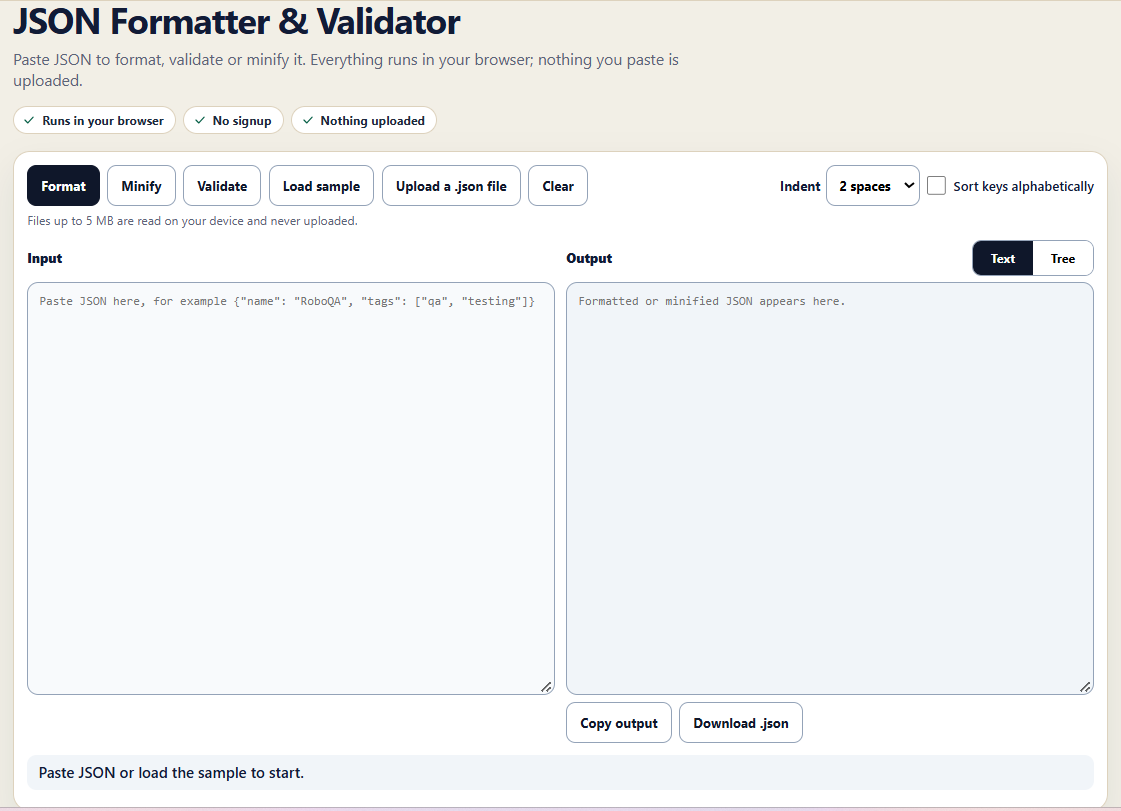
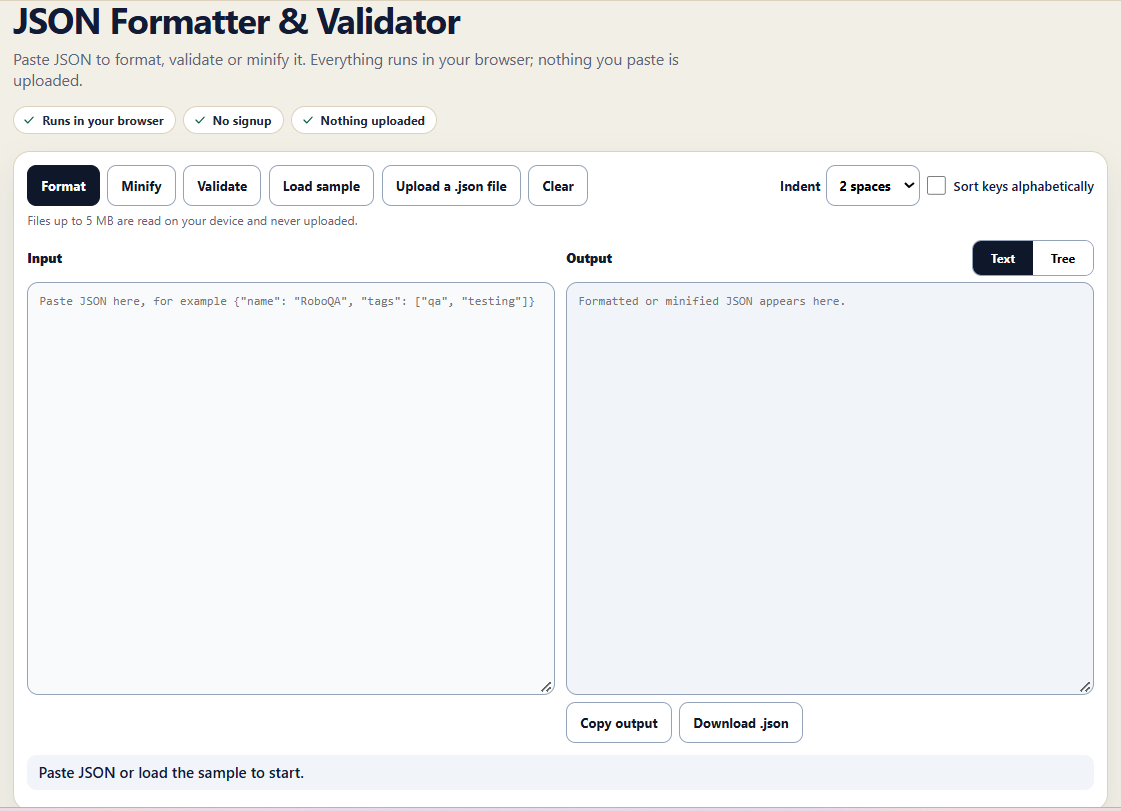
The RoboQA JSON Formatter and Validator provides several useful operations for working with JSON.
- Format: Add indentation and line breaks to make JSON easier to read.
- Validate: Check whether JSON follows the required syntax.
- Minify: Remove unnecessary whitespace to create a compact representation.
- Text view: Inspect the JSON as text.
- Tree view: Explore nested objects and arrays.
- Indentation settings: Choose an available indentation style.
- Sort keys: Optionally sort object keys alphabetically.
- Upload a JSON file: Load a local
.jsonfile for processing. - Copy output: Copy the processed JSON.
- Download output: Save the result as a
.jsonfile.
The tool indicates that local JSON files up to 5 MB can be read on your device. It also states that processing happens in your browser and your input is not uploaded.
How to Format JSON Online
Formatting makes JSON easier to read by adding consistent indentation and line breaks.
For example, this compact JSON is difficult to scan when it contains many properties:
{"name":"RoboQA","category":"Developer Tools","features":["Formatting","Validation","Minification"]}
After formatting, the structure becomes clearer:
{
  "name": "RoboQA",
  "category": "Developer Tools",
  "features": [
    "Formatting",
    "Validation",
    "Minification"
  ]
}
The formatter improves readability without changing the intended data values.
Steps to format JSON
- Open the RoboQA JSON Formatter.
- Paste your JSON into the input editor or upload a local JSON file.
- Select Format.
- Choose your preferred indentation setting.
- Review the formatted output.
- Copy the output or download it as a JSON file.
How to Validate JSON
JSON must follow specific syntax rules. If a document contains invalid syntax, an application may fail to parse it.
For example, the following JSON contains a trailing comma:
{
  "name": "RoboQA",
  "category": "Testing",
}
The corrected version is:
{
  "name": "RoboQA",
  "category": "Testing"
}
Other common JSON errors include:
- Missing commas between properties.
- Single quotes instead of double quotes.
- Property names without double quotes.
- Mismatched brackets or braces.
- Unsupported values such as
undefined.
Steps to validate JSON
- Open the free JSON Formatter and Validator.
- Paste your JSON or load a local file.
- Select Validate.
- Review the validation result.
- Correct any syntax problems and validate again.
Remember that valid JSON syntax does not guarantee that the data satisfies your application's business rules or API requirements. Schema validation and application-level testing may still be necessary.
How to Minify JSON
Minification removes unnecessary whitespace, such as indentation and line breaks.
Formatted JSON:
{
  "environment": "production",
  "debug": false,
  "retries": 3
}
Minified JSON:
{"environment":"production","debug":false,"retries":3}
Both examples represent the same JSON data.
Minification is useful when you need a compact representation of a JSON document. However, it is not the same as compression using algorithms such as gzip or Brotli.
Steps to minify JSON
- Open the RoboQA JSON tool.
- Enter your JSON.
- Select Minify.
- Review the compact output.
- Copy or download the result.
Text View vs. Tree View
JSON documents often contain nested objects and arrays. As the document grows, understanding the relationships between properties can become more difficult.
The tool offers two viewing options.
Text view is useful when you want to read, copy, or inspect the JSON document as text.
Tree view helps you explore the hierarchy of objects, arrays, and values.
For example:
{
  "user": {
    "id": 101,
    "name": "Alex",
    "roles": ["developer", "tester"]
  }
}
This document contains a top-level object, a nested user object, and a roles array. A tree representation can make those relationships easier to understand.
Why Developers and QA Engineers Use JSON Tools
JSON is frequently used in API requests, API responses, application settings, and automated test data.
A formatter and validator can support everyday development and testing tasks.
Debugging API responses
Formatting large API responses makes it easier to locate fields such as IDs, status values, error messages, and nested objects.
Preparing test data
QA engineers often use JSON fixtures and mock responses. Validation helps catch syntax errors before the data is used in a test.
Reviewing configuration files
Formatting makes configuration files easier to inspect and maintain, especially when they contain deeply nested settings.
Comparing expected and actual results
Consistently formatted JSON can make manual reviews easier. For more advanced comparisons, a dedicated JSON diff tool may be required.
Investigating failures
If an application cannot parse a JSON document, validation can help identify syntax problems. If the JSON is valid, the issue may instead involve missing fields, incorrect data types, or application logic.
A JSON formatter is a supporting utility, not a replacement for API testing or a complete automated testing framework.
Is the JSON Formatter Safe to Use?
The RoboQA tool states that pasted JSON and selected files are processed directly in your browser and are not uploaded.
Browser-based processing can help reduce unnecessary data transfers when working with JSON. Nevertheless, you should follow your organization's security policies when handling sensitive information.
Avoid entering passwords, access tokens, private keys, session cookies, or confidential customer data into tools unless their use is approved.
Frequently Asked Questions
Is the RoboQA JSON Formatter free?
Yes. The tool is presented as a free online developer utility.
Do I need to create an account?
No signup is required.
Can I upload a JSON file?
Yes. The interface supports local .json file selection and indicates a maximum file size of 5 MB.
Can I format and minify JSON with the same tool?
Yes. You can choose Format or Minify depending on your requirements.
Does valid JSON mean my API response is correct?
No. Syntax validation checks whether the document is valid JSON. API contracts, schemas, and business rules may require additional checks.
Can I use the tool for software testing?
Yes. It can help QA engineers inspect API response bodies, prepare test fixtures, and investigate JSON syntax errors. It does not, by itself, execute API requests or automated tests.
Related Resources
Continue learning and try the tool:
- Open the Free JSON Formatter and Validator — Format, validate, and minify JSON online.
- Read the JSON Formatter and Validator Guide — Learn about JSON formatting, validation, and common syntax errors.
- Read Free JSON Formatter and Validator Online: Features and Examples — Explore practical JSON examples and developer use cases.
Conclusion
The RoboQA JSON Formatter and Validator makes common JSON tasks easier by bringing formatting, syntax validation, minification, text and tree views, and file handling together in one browser-based tool.
Whether you are debugging an API response, preparing test data, or reviewing a configuration file, it can help you inspect JSON without installing another application.
Try the free JSON Formatter and Validator and explore the related guides to learn more.