Free JSON Formatter and Validator Online
JSON (JavaScript Object Notation) is one of the most widely used data formats in modern software development. Developers use JSON to exchange data between APIs, configure applications, store structured information, and work with web services. But raw JSON can be difficult to read, and even a small syntax error can prevent an application from processing it correctly.
A free online JSON Formatter and Validator makes working with JSON easier. You can format unstructured JSON, validate its syntax, minify it to reduce unnecessary whitespace, and inspect structured data without installing software.
RoboQA's free JSON Formatter and Validator runs directly in your browser, so you can work with JSON quickly without creating an account or uploading your data to a server.
What Is a JSON Formatter and Validator?
A JSON Formatter is a developer tool that transforms compact or poorly formatted JSON into a readable structure with consistent indentation and line breaks.
A JSON Validator checks whether a JSON document follows the required JSON syntax. If the document contains invalid syntax, validation helps you identify that something needs to be corrected before the data can be used.
For example, consider this unformatted JSON:
```json
{"name":"RoboQA","category":"Software Testing","features":["QA Automation","JSON Validation","Developer Tools"]}
```
After formatting, the same JSON becomes easier to read:
```json
{
"name": "RoboQA",
"category": "Software Testing",
"features": [
"QA Automation",
"JSON Validation",
"Developer Tools"
]
}
```
The underlying data remains the same. The formatter simply improves its readability.
A JSON Formatter and Validator is useful for developers, software testers, QA engineers, students, and anyone who regularly works with structured data.
Try the Free Online JSON Formatter
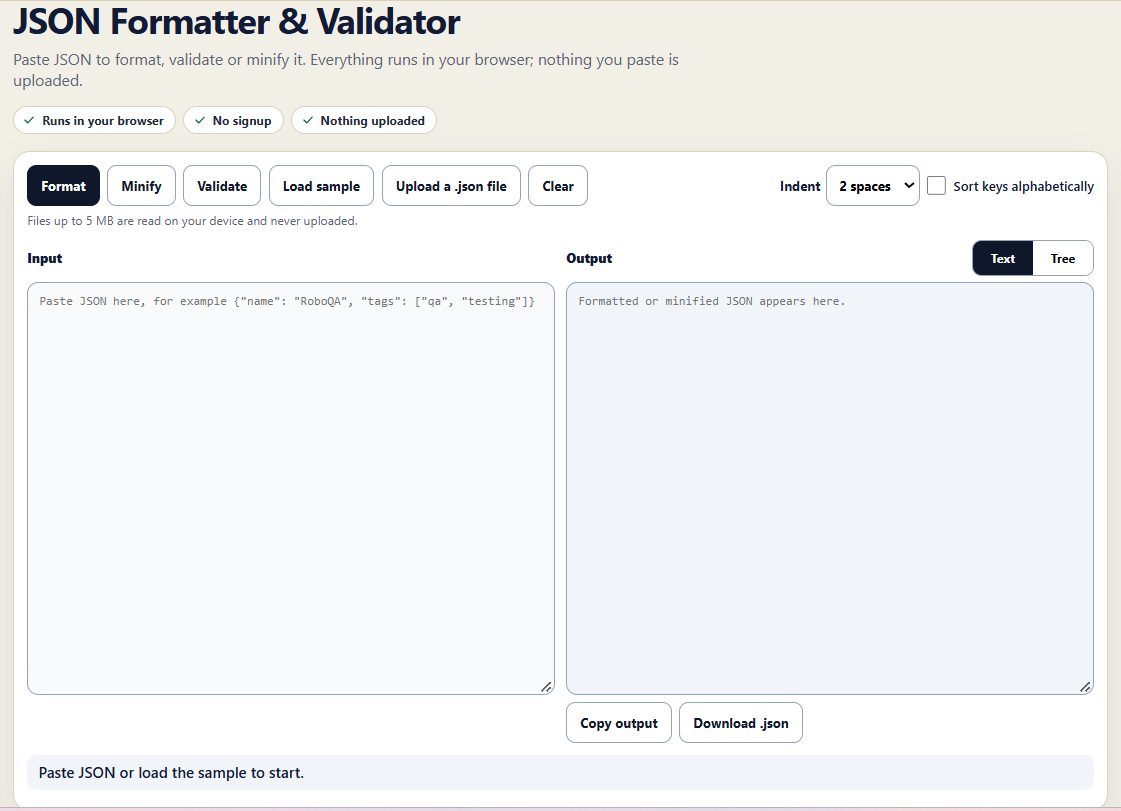
RoboQA provides a free JSON Formatter and Validator that works in your browser.
With this tool, you can:
- Format JSON with consistent indentation.
- Validate JSON syntax.
- Minify JSON by removing unnecessary whitespace.
- Load sample JSON to explore how the tool works.
- Upload a local `.json` file for processing.
- Choose between two-space and other available indentation options.
- Sort object keys alphabetically when needed.
- View JSON as formatted text or in a tree representation.
- Copy the formatted output.
- Download the result as a `.json` file.
- Clear the editor and start again.
The tool is designed for quick, everyday development and testing tasks without requiring an installation or signup.
Use the tool: https://www.roboqa.tech
1. Format JSON for Better Readability
JSON data often arrives as a single long line, particularly when it comes from API responses, application logs, configuration files, or copied output from another tool.
Reading such data can be difficult, especially when the document contains nested objects and arrays.
A JSON formatter adds indentation and line breaks to make the structure easier to understand.
When should you format JSON?
Formatting JSON can help when you are:
- Inspecting API request and response bodies.
- Debugging data returned by a web service.
- Reviewing configuration files.
- Checking nested objects and arrays.
- Comparing JSON documents during development.
- Reading test data used in automated testing.
- Investigating unexpected application behavior.
For example, a nested JSON response might contain customer information, order details, product lists, and payment status. Formatting separates these fields visually, making it easier to find the relevant values.
Does formatting change the JSON data?
A standard formatter changes the presentation of valid JSON, not the intended data values. It adds whitespace and indentation to make the document easier to read.
However, formatting should not be confused with modifying data. Renaming fields, changing values, or rearranging array elements can change the meaning or behavior of the document.
If you are debugging an application, preserve the original data when exact request or response content matters.
2. Validate JSON Syntax
A JSON document must follow specific syntax rules. If the document is invalid, a parser may reject it, causing problems in applications, APIs, configuration loaders, or automated tests.
A JSON validator helps identify syntax problems before the document is used elsewhere.
Common JSON errors
Missing double quotes around property names
Invalid:
```json
{
name: "RoboQA"
}
```
Valid:
```json
{
"name": "RoboQA"
}
```
JSON property names must use double quotes.
Using single quotes for strings
Invalid:
```json
{
"name": 'RoboQA'
}
```
Valid:
```json
{
"name": "RoboQA"
}
```
JSON strings must use double quotes.
Trailing commas
Invalid:
```json
{
"name": "RoboQA",
"category": "Testing",
}
```
Valid:
```json
{
"name": "RoboQA",
"category": "Testing"
}
```
Standard JSON does not allow a trailing comma after the final property or array element.
Missing commas between properties
Invalid:
```json
{
"name": "RoboQA"
"category": "Testing"
}
```
Valid:
```json
{
"name": "RoboQA",
"category": "Testing"
}
```
Mismatched brackets
Invalid:
```json
{
"features": ["Testing", "Automation"
}
```
Valid:
```json
{
"features": ["Testing", "Automation"]
}
```
A validator helps you catch syntax problems like these before they become harder-to-diagnose application errors.
What does JSON validation not check?
Valid JSON syntax does not automatically mean the data is correct for your application.
For example, this document is syntactically valid:
```json
{
"age": -10,
"email": "not-an-email"
}
```
But an application may reject the negative age or invalid email address.
A basic JSON syntax validator checks whether the document is valid JSON. It does not necessarily verify business rules, required application fields, data types defined by an API contract, or JSON Schema constraints.
For those checks, you may need application-specific validation, API contract testing, or a JSON Schema validator.
3. Minify JSON to Remove Unnecessary Whitespace
JSON minification removes formatting whitespace, producing a more compact representation of the same data.
For example, formatted JSON:
```json
{
"name": "RoboQA",
"features": [
"Testing",
"Automation"
]
}
```
Minified JSON:
```json
{"name":"RoboQA","features":["Testing","Automation"]}
```
Both examples represent the same JSON data.
Why minify JSON?
Minification can be useful when you need to:
- Create compact JSON payloads.
- Prepare sample data for testing.
- Copy JSON into tools or fields where space is limited.
- Remove unnecessary whitespace from configuration examples.
- Compare the compact representation of a payload.
- Prepare JSON for workflows that expect a single-line document.
Minification is not a substitute for compression. It removes formatting whitespace, but it does not compress the data using algorithms such as gzip or Brotli.
If you are measuring API performance or network transfer size, remember that transport compression can have a much larger effect than JSON minification alone.
4. Inspect JSON in Text and Tree Views
Nested JSON can become difficult to navigate as the document grows. A tree view provides a structured way to inspect objects, arrays, and their child values.
A text view is useful when you want to read, edit, copy, or compare the JSON document directly.
A tree view can be more convenient when you want to explore a nested structure without manually scanning every line.
For example:
```json
{
"user": {
"id": 101,
"name": "Alex",
"roles": ["developer", "tester"]
}
}
```
The structure contains a top-level object, a nested `user` object, and a `roles` array.
Understanding these relationships is useful when debugging API responses, reviewing test fixtures, and checking the shape of data returned by an application.
RoboQA's JSON Formatter and Validator offers text and tree viewing options to make JSON inspection more convenient.
5. Choose Indentation and Sort Object Keys
Consistent formatting makes JSON easier to review and maintain.
Two-space indentation is a common convention for JSON files, although some teams prefer four spaces or other styles.
The right choice depends on your team's coding standards and the surrounding project.
The tool also offers an option to sort object keys alphabetically.
Sorting can help when you want a predictable key order for reviewing or comparing JSON objects. However, it is important to understand that sorting changes the textual representation of the document.
JSON object member order is not generally intended to carry meaning, but array order can be significant. A formatter should not be assumed to sort array elements or preserve every byte of the original document.
If you are working with signed payloads, cryptographic hashes, snapshots, or systems that compare exact serialized text, be careful about changing whitespace or key order.
6. Work with Local JSON Files
Sometimes JSON is stored in a file rather than copied from an API response or editor.
A local JSON file may contain application configuration, sample data, test fixtures, exported records, or mock API responses.
RoboQA's tool allows you to select a `.json` file from your device for processing. You can then format, validate, or minify the contents and download the output when needed.
This is convenient when you want to inspect a file without opening a full development environment.
A note about file size
The tool indicates that files up to 5 MB can be read locally. If you are working with larger JSON exports, you may need a local script or a specialized editor instead.
7. Is the JSON Formatter Safe for Private Data?
Privacy matters when working with JSON because documents can contain personal information, authentication details, customer records, internal application data, or API responses.
RoboQA's JSON Formatter and Validator is designed to process pasted JSON and selected files directly in your browser. The tool states that the data is not uploaded.
Local browser processing can reduce the risk of exposing sensitive information to a remote formatting service.
Nevertheless, you should always follow your organization's security policies when handling confidential data.
Avoid pasting production passwords, access tokens, private keys, session cookies, or sensitive customer records into tools unless you have confirmed that their use is permitted.
For particularly sensitive data, consider using a trusted local development environment and inspect the tool's implementation and network behavior if your security requirements demand independent verification.
8. How to Use the JSON Formatter and Validator
You can use the tool in a few simple steps.
Step 1: Open the tool
Visit https://www.roboqa.tech and open the JSON Formatter and Validator.
Step 2: Enter your JSON
Paste your JSON into the input editor, or use the file upload option to select a local `.json` file. You can also load the sample data to explore the interface.
Step 3: Choose an operation
Select the operation you need:
- Format: Make the JSON easier to read.
- Minify: Remove unnecessary whitespace.
- Validate: Check whether the JSON syntax is valid.
Step 4: Adjust the output options
Choose your preferred indentation. If useful, enable alphabetical sorting of object keys.
Step 5: Inspect the result
Review the output in text view or switch to tree view to explore the structure.
Step 6: Copy or download
Copy the output to your clipboard or download it as a `.json` file.
This workflow is useful when you need to inspect or clean JSON quickly without installing a separate application.
9. Why JSON Tools Are Useful for Software Testing
JSON is commonly used in software testing because APIs and web applications frequently exchange structured data.
QA engineers may inspect JSON when validating API responses, preparing test data, investigating failures, or comparing actual results with expected results.
A formatter and validator can support these activities, although it does not replace a full testing framework.
Inspect API responses
When an API returns a large JSON response, formatting makes it easier to find the fields relevant to a test.
For example, a tester might inspect a response containing an order ID, order status, product list, and total amount.
Debug test data
Automated tests often use JSON fixtures or mock data. A missing comma or incorrectly quoted property can cause a test to fail before the application logic is even reached.
Validation helps identify syntax problems in the fixture.
Review expected and actual results
QA engineers often compare expected data with actual responses. Formatting both documents consistently can make differences easier to spot.
For complex comparisons, a dedicated JSON diff tool may be more appropriate.
Prepare reusable test payloads
Developers and testers can format sample request bodies before using them in API clients, test scripts, or documentation.
Keep in mind that a JSON formatter does not send API requests, check HTTP status codes, or execute automated tests. It helps you inspect the data used in those workflows.
10. JSON Formatter vs. JSON Validator vs. JSON Minifier
These operations solve related but different problems.
| Operation | Main purpose | Best used when |
|---|---|---|
| JSON Formatter | Improves readability | JSON is difficult to inspect |
| JSON Validator | Checks JSON syntax | You suspect a syntax error |
| JSON Minifier | Removes formatting whitespace | You need compact JSON |
| JSON Tree Viewer | Helps explore nested data | The document has many objects and arrays |
A single developer tool that supports these operations can make everyday JSON tasks faster because you do not need to switch between several websites.
Frequently Asked Questions
Is the RoboQA JSON Formatter free?
Yes. The JSON Formatter and Validator shown on RoboQA is presented as a free online developer tool.
Do I need to create an account?
No signup is required to use the tool.
Is my JSON uploaded to a server?
The tool states that pasted JSON and selected files are processed in your browser and are not uploaded.
Can I validate JSON without formatting it?
Yes. Use the Validate operation when you want to check syntax without needing to reformat the document.
Can I minify JSON?
Yes. The Minify operation removes unnecessary formatting whitespace to create a compact JSON document.
Can I upload a JSON file?
Yes. You can select a local `.json` file. The interface indicates a maximum file size of 5 MB.
What is the difference between valid JSON and valid application data?
Valid JSON follows JSON syntax rules. Valid application data must also satisfy the requirements of the particular application, API, or data schema.
Does this tool validate API responses?
It can help you check whether a JSON response body is syntactically valid. It does not, by itself, make API requests or verify the application's business rules.
Can I use this tool on mobile?
The tool is browser-based. Its usability on a particular mobile device depends on the browser and screen size.
What should I do if my JSON is invalid?
Use the validation operation to identify the problem, then check common syntax issues such as missing commas, unquoted property names, single-quoted strings, trailing commas, and mismatched brackets.
Conclusion
A JSON Formatter and Validator is a simple but useful tool for anyone who works with APIs, configuration files, structured data, or automated tests.
Formatting makes JSON easier to read. Validation helps catch syntax errors. Minification removes unnecessary whitespace, while tree view makes nested structures easier to explore.
RoboQA brings these everyday operations together in one free browser-based tool, with no signup required and a stated local-processing approach.
Try the free JSON Formatter and Validator: https://www.roboqa.tech/freetools/json-formatter
Explore more developer tools and software testing resources from RoboQA as you build, debug, and test your applications.