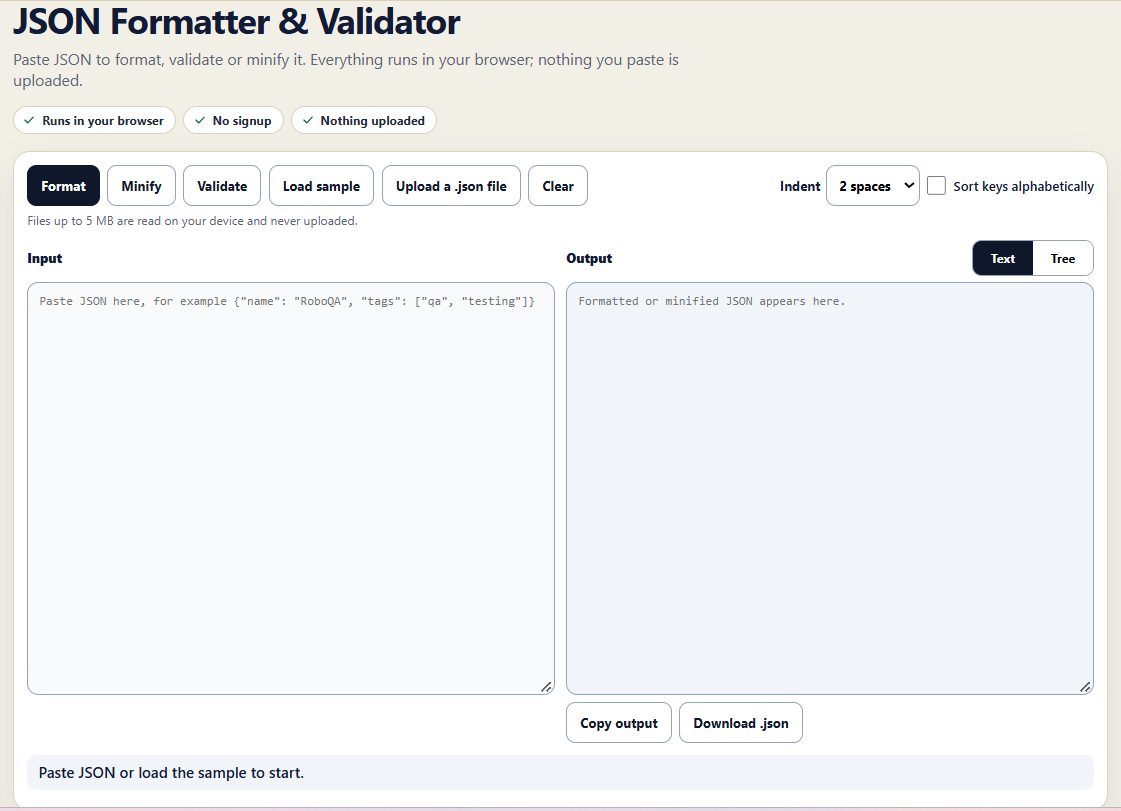
Free JSON Formatter and Validator Online
JSON is a standard part of modern software development. Developers use it to exchange information between applications, QA engineers inspect API responses, and teams store configuration settings and test data in JSON files.
Despite its simplicity, JSON can become difficult to work with when documents are large, poorly formatted, or contain syntax errors. A missing comma, an extra trailing comma, or an incorrectly quoted string can cause a parser to reject the entire document.
A free online JSON Formatter and Validator helps solve these problems. It allows you to format JSON into a readable structure, validate its syntax, and minify it when you need a compact representation.
With the [RoboQA JSON Formatter and Validator](https://www.roboqa.tech/freetools/json-formatter), you can perform these everyday tasks directly in your browser without installing additional software or creating an account.
What Can You Do With an Online JSON Formatter?
A JSON formatter takes a JSON document and improves its readability by adding consistent indentation and line breaks.
Consider this example:
```json
{"project":"RoboQA","type":"Developer Tools","features":["JSON Formatting","Validation","Minification"]}
```
Although this is valid JSON, reading and editing it can become inconvenient as the document grows.
A formatted version looks like this:
```json
{
"project": "RoboQA",
"type": "Developer Tools",
"features": [
"JSON Formatting",
"Validation",
"Minification"
]
}
```
The formatted version makes the relationships between properties, values, and arrays easier to understand.
An online JSON formatter is particularly helpful when working with long API responses, nested objects, configuration files, and sample data used in automated tests.
Try the Free JSON Formatter and Validator
The RoboQA JSON Formatter and Validator brings several common JSON operations together in one browser-based tool.
Open the free tool: https://www.roboqa.tech/freetools/json-formatter
Its available features include:
- Format JSON: Improve readability with indentation and line breaks.
- Validate JSON: Check whether a document follows JSON syntax rules.
- Minify JSON: Remove unnecessary formatting whitespace.
- Text view: Read and work with the JSON document as text.
- Tree view: Explore nested objects and arrays.
- Indentation options: Choose the available indentation style.
- Sort keys: Optionally sort object keys alphabetically.
- File upload: Load a local `.json` file for processing.
- Copy output: Copy the result for use in your editor or workflow.
- Download JSON: Save the processed output as a JSON file.
- Load sample: Explore the tool using example JSON.
- Clear editor: Remove the current content and start again.
The tool indicates that local JSON files up to 5 MB can be read on your device. It also states that processing takes place in your browser and the input is not uploaded.
Why Is JSON Validation Important?
JSON follows a defined syntax. Applications that parse JSON expect property names, strings, numbers, arrays, objects, and other supported values to follow those rules.
When the syntax is incorrect, an application may fail to parse the document.
For example, consider this JSON:
```json
{
"name": "RoboQA",
"category": "Testing",
}
```
The trailing comma after `"Testing"` makes this invalid JSON.
The corrected version is:
```json
{
"name": "RoboQA",
"category": "Testing"
}
```
A JSON validator helps identify syntax issues before the document is used in an application, API request, configuration file, or automated test.
Common JSON syntax mistakes
1. Missing commas
JSON properties must be separated by commas.
Incorrect:
```json
{
"name": "RoboQA"
"category": "Testing"
}
```
Correct:
```json
{
"name": "RoboQA",
"category": "Testing"
}
```
2. Single quotes instead of double quotes
JSON strings require double quotes.
Incorrect:
```json
{
"status": 'active'
}
```
Correct:
```json
{
"status": "active"
}
```
3. Unquoted property names
Property names must be enclosed in double quotes.
Incorrect:
```json
{
status: "active"
}
```
Correct:
```json
{
"status": "active"
}
```
4. Mismatched brackets
Every JSON object and array must have matching opening and closing delimiters.
Incorrect:
```json
{
"items": ["one", "two"
}
```
Correct:
```json
{
"items": ["one", "two"]
}
```
5. Invalid values
JSON supports strings, numbers, objects, arrays, booleans, and `null`. Values such as `undefined` and `NaN` are not valid JSON values.
Incorrect:
```json
{
"result": undefined
}
```
Correct:
```json
{
"result": null
}
```
Learning these rules can help developers avoid common problems when preparing or debugging JSON documents.
JSON Formatting vs. JSON Validation
Formatting and validation are related, but they serve different purposes.
Formatting makes a document easier to read. Validation checks whether the document follows the required syntax.
A document can be valid JSON but still be difficult to inspect because everything appears on one line. Conversely, a document may look organized but contain invalid syntax.
For example:
```json
{"user":{"name":"Alex","active":true}}
```
This is valid JSON, but formatting it makes the structure clearer:
```json
{
"user": {
"name": "Alex",
"active": true
}
}
```
If the original document contains invalid syntax, a formatter may be unable to process it until the error is corrected. Use validation to check syntax and formatting to improve readability.
What Is JSON Minification?
JSON minification removes unnecessary whitespace, including indentation and line breaks, to produce a more compact document.
Formatted JSON:
```json
{
"environment": "production",
"debug": false,
"retries": 3
}
```
Minified JSON:
```json
{"environment":"production","debug":false,"retries":3}
```
Both represent the same data.
Minification can be useful when preparing compact sample payloads, storing examples in limited spaces, or working with systems where a single-line representation is convenient.
However, minification is not the same as data compression. It removes formatting whitespace but does not apply compression algorithms such as gzip or Brotli.
You should also remember that minification reduces readability. Keep a formatted version when you need to review or debug the document later.
When Should You Use a JSON Formatter?
An online JSON formatter can help with a variety of everyday development tasks.
1. Debugging API responses
APIs commonly return data in JSON format. A response might contain user information, product details, order status, pagination information, or error messages.
When the response is large, formatting makes it easier to locate the relevant fields.
For example, a tester investigating an order API may need to inspect the order ID, status, item list, and total amount. A formatted response makes those fields easier to identify.
2. Reviewing configuration files
Many applications use JSON configuration files to define settings, options, and environment-specific values.
Formatting helps developers review the hierarchy of these settings and understand which values belong to nested objects.
Always be careful when editing configuration files used by production applications. A syntactically valid change can still produce unintended application behavior.
3. Preparing automated test data
Software testing often relies on JSON fixtures, mock responses, and expected results.
A JSON validator can catch syntax problems in test data before a test starts running. A formatter makes the fixture easier for team members to review and maintain.
For example, if a test expects a response containing a user ID and an account status, readable JSON helps reviewers check the expected structure.
4. Investigating application errors
When an application fails to process a JSON document, validation can help determine whether the problem is related to syntax.
If the JSON is valid, the cause may lie elsewhere, such as a missing required property, an unexpected data type, a business-rule violation, or a mismatch between the API contract and the actual response.
A formatter and validator are useful debugging aids, but they cannot identify every application-level problem.
5. Sharing JSON with teammates
Readable JSON is easier to review in pull requests, bug reports, technical documentation, and team discussions.
Consistent indentation helps reduce visual clutter and makes nested structures easier to understand.
Before sharing data, remove secrets and sensitive information such as access tokens, passwords, session identifiers, and confidential customer records.
How to Use the RoboQA JSON Formatter and Validator
You can process JSON in a few simple steps.
Step 1: Open the tool
Visit https://www.roboqa.tech/freetools/json-formatter.
Step 2: Add your JSON
Paste your JSON into the input area, load the sample, or select a local `.json` file.
Step 3: Select the operation
Choose Format to improve readability, Validate to check syntax, or Minify to remove unnecessary whitespace.
Step 4: Adjust the settings
Choose your preferred indentation and optionally enable alphabetical sorting of object keys.
Step 5: Review the output
Read the result in text view or switch to tree view to explore the JSON structure.
Step 6: Copy or download the result
Copy the processed JSON or download it as a `.json` file for use in your project.
You can return to the editor, clear the existing content, and process another document whenever needed.
Is an Online JSON Formatter Safe to Use?
Privacy is an important consideration when using any online developer tool.
JSON documents can contain sensitive application data, API responses, internal configuration values, and personal information.
The RoboQA JSON Formatter and Validator states that processing occurs directly in your browser and that pasted content and selected files are not uploaded.
This approach can reduce the need to send data to a remote formatting service. However, if you are working with highly sensitive information, follow your organization's security requirements and use approved tools.
For stronger assurance, teams with strict security policies can independently inspect the tool's implementation and browser network activity to verify how data is handled.
Regardless of the tool, avoid sharing production secrets or confidential records unnecessarily.
Does Valid JSON Mean the Data Is Correct?
No. Valid JSON only means that the document follows JSON syntax rules.
Consider the following example:
```json
{
"age": -5,
"email": "not-an-email"
}
```
This is syntactically valid JSON. However, an application may reject the negative age or require the email field to contain a valid email address.
There are several different levels of validation:
- Syntax validation: Checks whether the document is valid JSON.
- Schema validation: Checks whether the structure and values match a defined schema.
- Business-rule validation: Checks whether the data satisfies application-specific requirements.
- API testing: Checks actual API behavior, responses, status codes, and other requirements.
A basic JSON Formatter and Validator primarily helps with formatting and syntax validation. More advanced requirements need additional validation or testing tools.
Understanding this distinction is especially important for QA engineers who need to determine whether a failure originates in JSON syntax, data structure, or application behavior.
JSON Formatter and Validator: Frequently Asked Questions
Is there a free JSON Formatter and Validator online?
Yes. RoboQA provides a free browser-based tool for formatting, validating, and minifying JSON.
Use it here: https://www.roboqa.tech/freetools/json-formatter.
Do I need to install anything?
No installation is required. You can open the tool in a compatible web browser.
Does the tool require registration?
No signup is required to use the tool.
Can I format large JSON files?
The interface indicates that local JSON files up to 5 MB can be read on your device. For larger files, a local editor or specialized utility may be more suitable.
Can I validate JSON without minifying it?
Yes. Use the validation operation to check syntax without choosing minification.
What is the difference between a JSON formatter and a JSON viewer?
A formatter improves the document's layout, while a viewer helps you inspect its contents. Some tools, including RoboQA's, provide both formatted text and a tree view.
Can a JSON validator fix every error automatically?
Not necessarily. A validator can help identify invalid syntax, but you may need to correct the underlying issue manually. Automatically changing malformed data can also introduce unintended results.
Does JSON key order matter?
JSON objects are generally treated as unordered collections of name-value pairs. However, applications may have implementation-specific expectations, and exact serialized text can matter for signatures, hashes, or snapshot comparisons. Array order is significant when it represents an ordered sequence.
Is JSON the same as JavaScript objects?
No. JSON is a text-based data format with stricter syntax rules than JavaScript object literals. For example, JSON requires double-quoted property names and does not support JavaScript values such as `undefined`.
Conclusion
A free JSON Formatter and Validator can make everyday development and testing tasks easier by helping you read structured data, catch syntax mistakes, and create compact JSON documents.
Whether you are debugging an API response, reviewing a configuration file, preparing automated test data, or inspecting a nested object, formatting and validation can save time.
The RoboQA JSON Formatter and Validator combines formatting, validation, minification, text and tree views, local file processing, and output download options in one browser-based tool.
Try the free tool: https://www.roboqa.tech/freetools/json-formatter
Read the related JSON Formatter and Validator guide: https://www.roboqa.tech/blog/json-formatter-validator
Explore RoboQA for more free developer utilities and practical software testing resources.